InContext Capture Installation: Difference between revisions
Jump to navigation
Jump to search
| Line 18: | Line 18: | ||
** In the Chrome Web Store, verify that you are logged in using the correct email address . If this does not work, please contact support@lingoport.com. | ** In the Chrome Web Store, verify that you are logged in using the correct email address . If this does not work, please contact support@lingoport.com. | ||
[[File:UserSignin.png|600px]] | [[File:UserSignin.png|600px]] | ||
* click on '''Add to Chrome | * click on '''Add to Chrome''' | ||
You should see the Lingoport swirl [[File:In-context-status-on-128.png|35px]] at the top of the Chrome browser window. | You should see the Lingoport swirl [[File:In-context-status-on-128.png|35px]] at the top of the Chrome browser window. | ||
Revision as of 19:09, 19 April 2019
Pre-Requisites
In order to use Lingoport InContext Capture, the user must have access to the Google Chrome browser. Lingoport InContext Capture is based off a Chrome extension and other browsers do not have the same capability. Firefox or Internet Explorer can not be used as the browser in this situation.
The reviewer needs to have the following information which should be set up by the InContext Server:
- The InContext Server URL
- An InContext Chrome token.
In addition, the reviewer will need:
- Their email address
Chrome Extension Installation
From within the Google Chrome Browser:
- Make sure you are signed in to Chrome Web Store with an authorized Google account: https://chrome.google.com/webstore/category/extensions
- Lingoport will give permissions to access the extension, based on the email address given to Lingoport. This is the email address that must be used when signing into the Chrome Web Store.
- Navigate to https://chrome.google.com/webstore/detail/lingoport-incontext-captu/pobljigcndnaidmgonemgobiedkfkeoi
- If this gives an error or a "URL was not found" message:
- In the Chrome Web Store, verify that you are logged in using the correct email address . If this does not work, please contact support@lingoport.com.
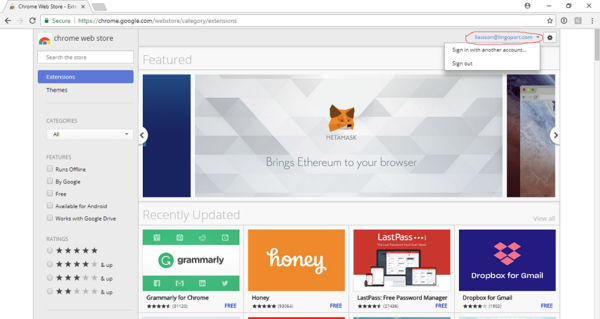

- click on Add to Chrome
You should see the Lingoport swirl  at the top of the Chrome browser window.
Chrome Extension Configuration
- Before configuring the Chrome InContext Capture extension, a chrome token needs to be created in InContext Server.
- Right-click on the Lingoport swirl
 for the Chrome Extension (top right corner of your Chrome)
 - Click on the 'Option' icon of the dialog.
- Fill in the data, using the Chrome token and Save Credentials
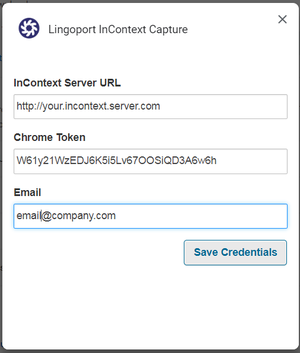

You should be ready to do InContext capture.